Display links on checkout
A step-by-step guide to adding download buttons to your Thank You and Order Status pages.
Ready to give your customers instant access? This guide walks you through adding the Imprint Digital Files block to your checkout flow using the Shopify Checkout Editor.
Open the Configuration
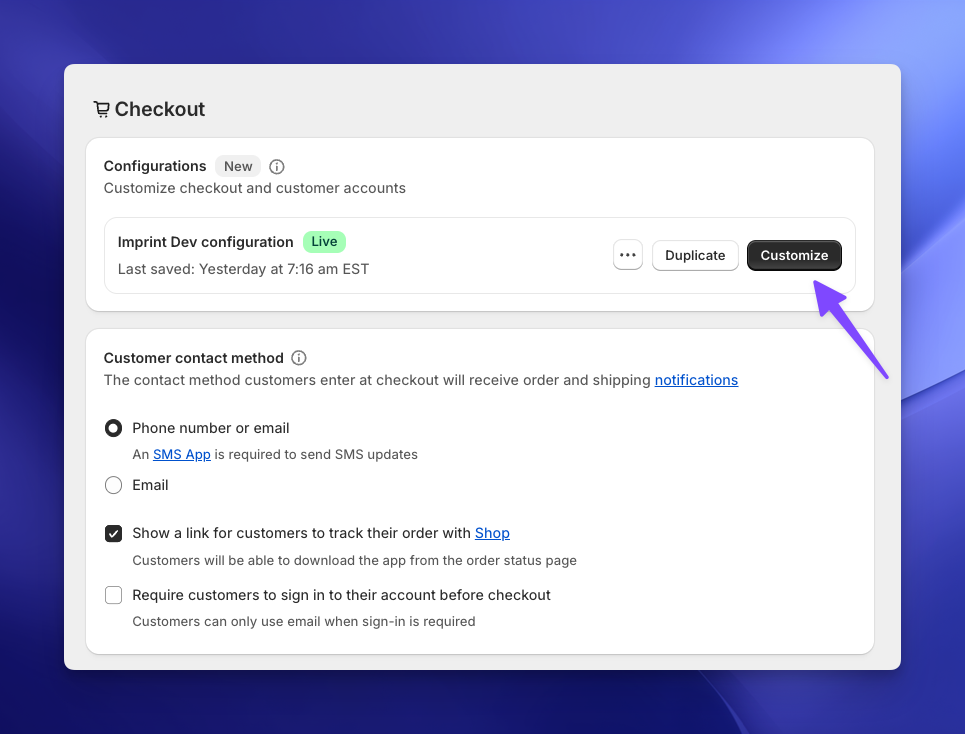
When you click Open Checkout Editor from the Imprint app (or go to Settings → Checkout in your Shopify admin), you will see your checkout configurations.
- Locate your live configuration (the screenshot below shows a test store, so yours will have a different name).
- Click the Customize button to enter the visual editor.
Choose Your Page
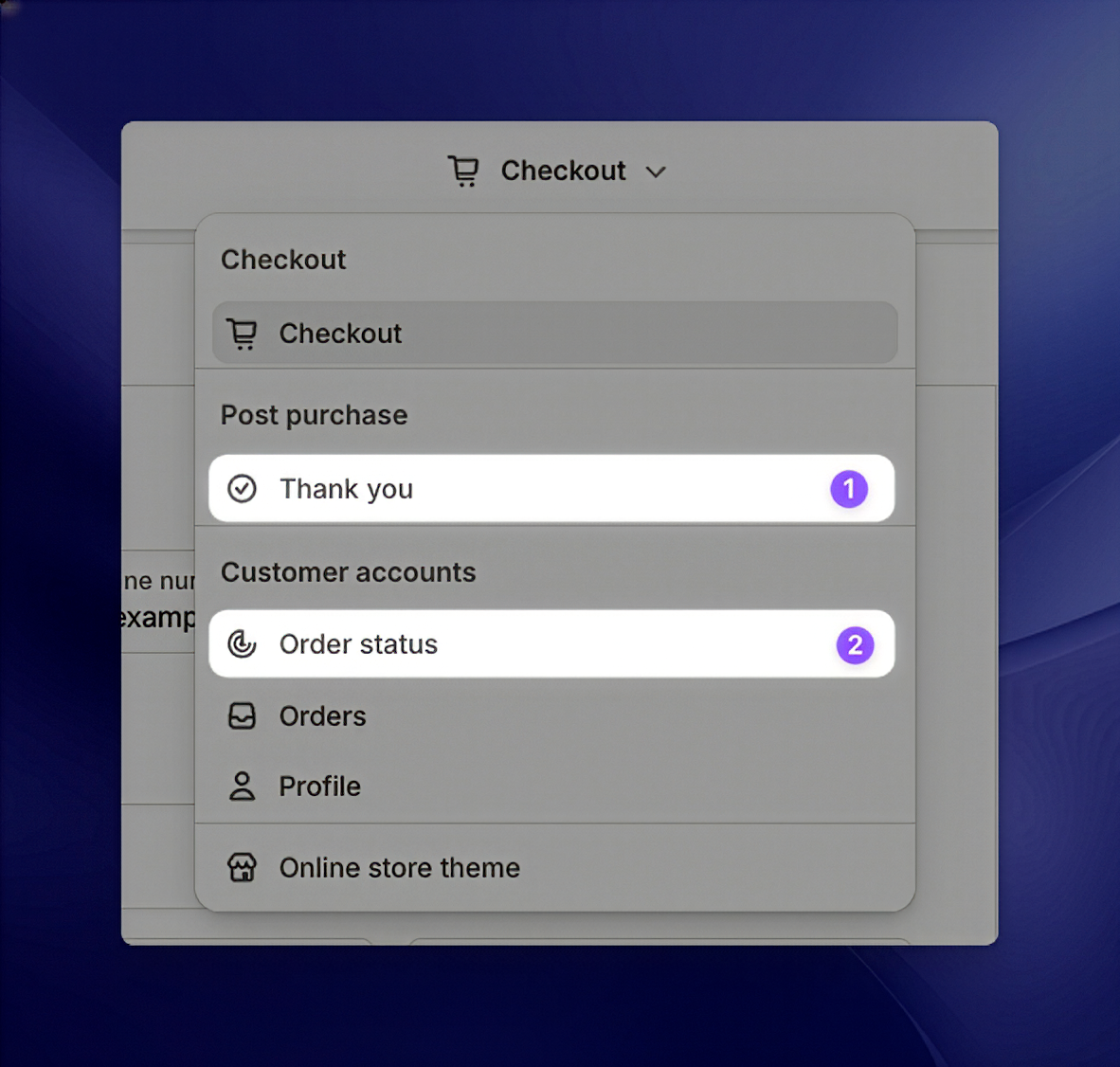
Shopify allows you to add the download box to two different places. Use the dropdown menu at the very top of the screen to switch between them.
🅰️ The "Thank you" Page
This is the screen customers see immediately after they successfully pay.
- Why use it: It's the perfect moment for instant delivery. The customer is already staring at this screen.
🅱️ The "Order status" Page
This is the order page in your store's customer accounts. Customers reach it from the link in their order confirmation email, or by logging in to their account and opening the order.
- Why use it: It serves as a permanent "portal" where they can come back to download their files again if they lose them.
Recommendation: We strongly suggest adding the block to BOTH pages to ensure customers can always find their files.
Add the Digital Files Block
Once you are on the correct page (e.g., the "Thank you" page):
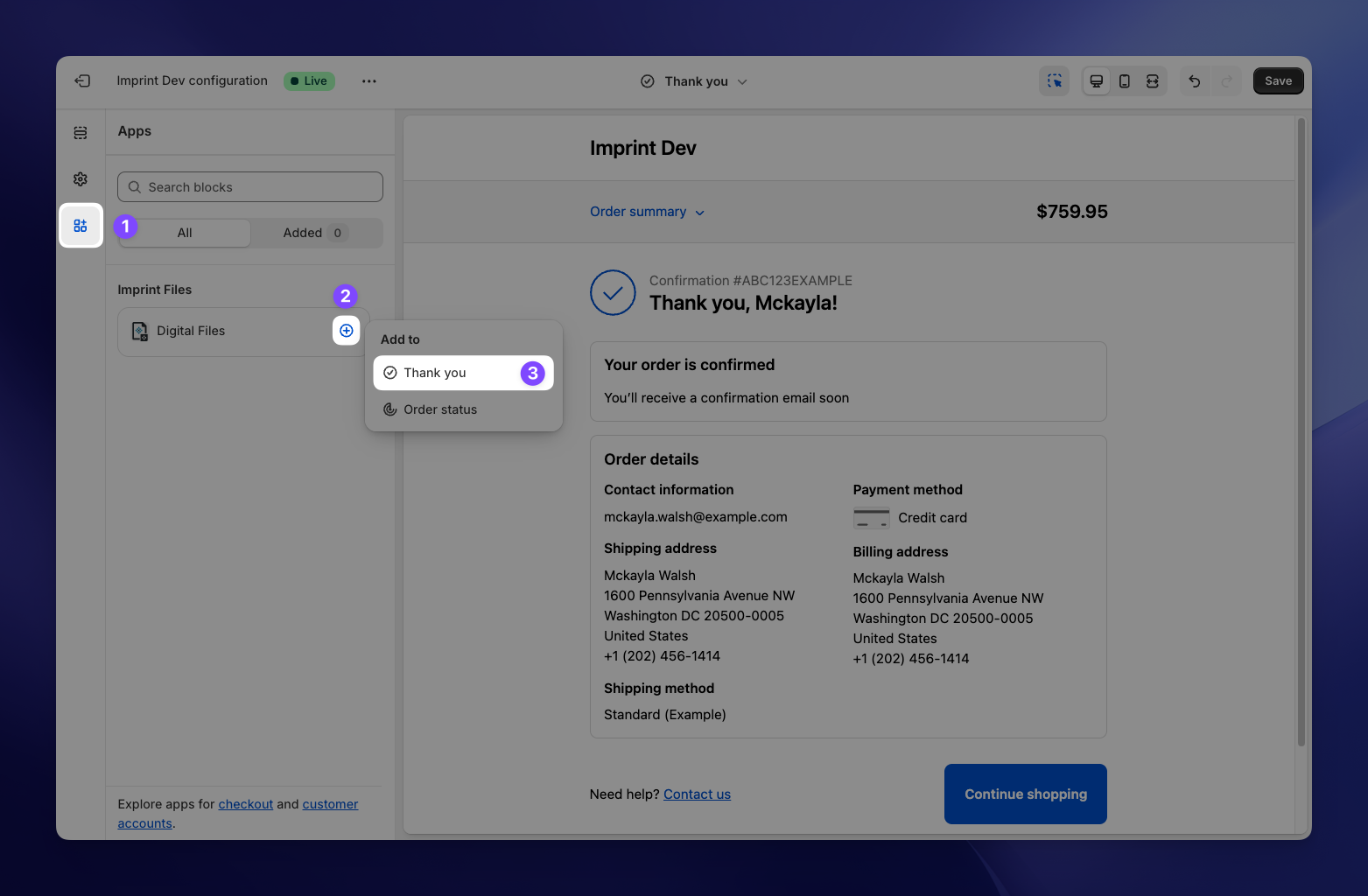
- Look for the App blocks section or click the "Add app block" icon (usually a small square
+icon) in the bottom left. - Select Digital Files from the list under "Imprint Files".
- A popup will ask where you want to add it (Thank you or Order status). Ensure the correct one is checked.
Save and Publish
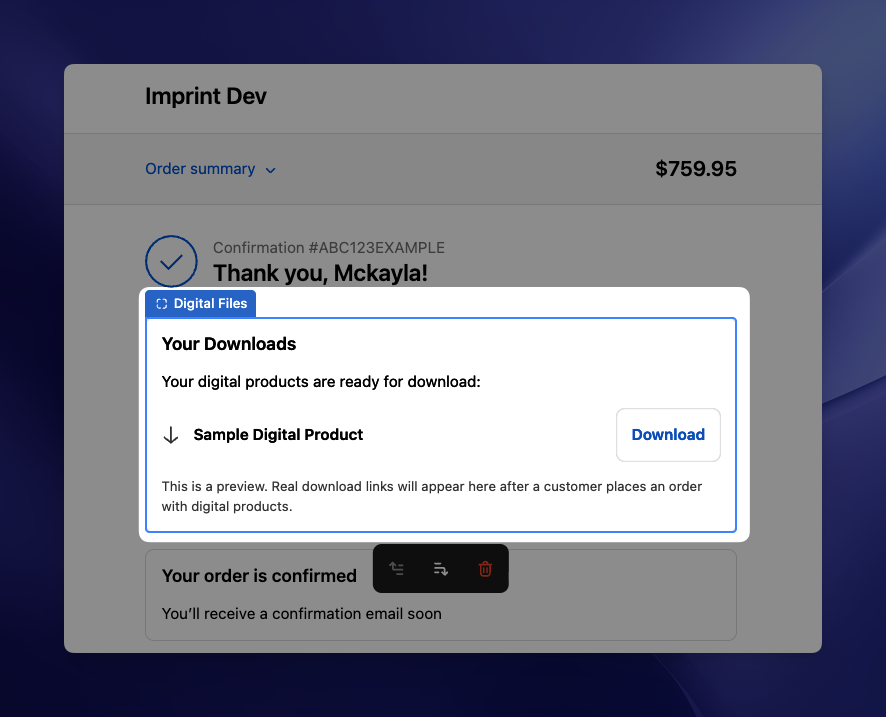
You should now see the Digital Files block appear in your preview. Since the editor has no real order, it shows a sample file ("Sample Digital Product") with a note that real download links will appear there after an order. On the Free plan, it shows an upgrade message instead.
- You can use the arrows below to move the block to position it where you want (e.g., above or below the order details).
- When you are happy with the placement, click the black Save button in the top right corner.
🎉 The Result
That's it! Your checkout is now supercharged.
When a customer completes a purchase, they will see a "Your Downloads" section. It lists each product they bought (with the variant name, if any) and every file with a Download button, followed by a reminder that the links were also sent by email. File names follow your Download Settings.
They can grab their files instantly without ever leaving your store!
The block appears in your customer's language, in the same languages as Imprint's download emails.
🔎 What Customers See in Special Cases
The block adapts to the state of the order, so customers always get a helpful message:
- Links still being prepared: Right after payment, Imprint may need a few seconds to create the links. The block shows Loading your downloads... and checks again by itself a few times. If the links still aren't ready, it says the downloads are being prepared and offers a Try Again button.
- Payment not completed yet: For orders that aren't fully paid (for example, a payment that is still pending), the block explains that the links will be available once payment is completed.
- No digital products: If the order doesn't contain any of your digital products, the block stays hidden.
- Expired links: Links that have expired are no longer listed.
Moving to the Free plan? The block only lists downloads on the Basic plan or higher. On the Free plan, customers see an "Upgrade required to display downloads here" message in the block instead, so remove the block from both pages if you downgrade. Download emails keep working on every plan.