Email Settings
Configure how download emails are delivered, including standard delivery options and custom SMTP server integration.
Email Settings 📧
The Email Settings page allows you to control the primary way your customers receive their digital files.
By default, Imprint automatically emails your customers the moment they pay. However, you can customize how this email is sent or even turn it off entirely if you prefer to deliver files exclusively through your store's checkout page.
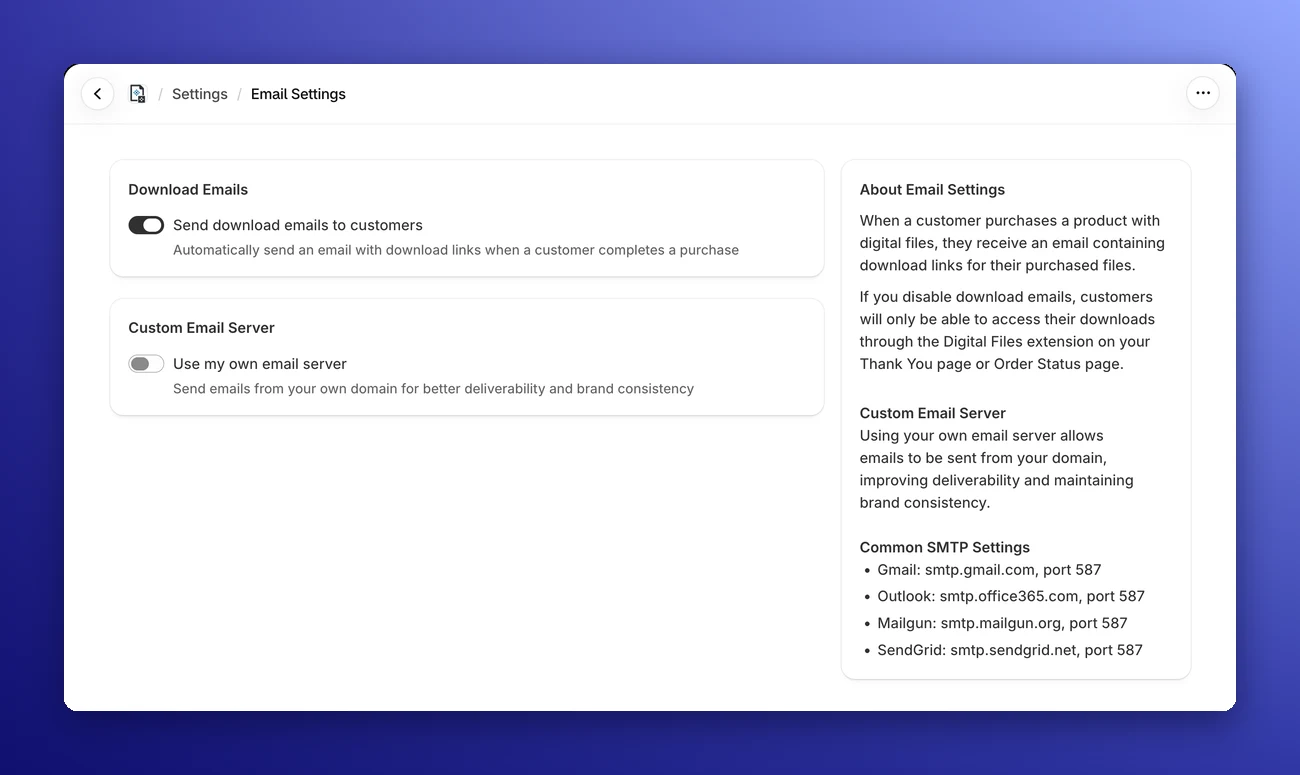
📨 Download Emails
This section controls the automatic delivery system.
- Send download emails to customers: This is the main "On/Off" switch for email delivery.
- Enabled (Default): When a customer purchases a digital product, they immediately receive an email containing their unique, secure download links.
- Disabled: No emails will be sent. A warning appears at the top of the page, with an Open checkout editor button.
Important: If you disable this, customers will only be able to access their downloads if you have added the Digital Files block to your "Thank you" and "Order status" pages. That block needs the Basic plan or higher, so on the Free plan, keep emails switched on. Learn how to add the block.
What's in the Email
The email lists each product with a download button for every file, the expiry date and how many downloads are left. It mentions your store by the name set in your Shopify settings, so if you rename your store, your emails follow.
Email Language 🌍
Each email is sent in your customer's language, as chosen in your store at checkout. If Imprint doesn't support that language, it uses your Shopify admin's language, and otherwise English.
Supported languages: English, French, German, Spanish, Italian, Portuguese (Brazil), Japanese, Greek, Hungarian, Polish and Turkish.
🏢 Custom Email Server (SMTP)
By default, emails are sent from Imprint's own email address. While this works perfectly, using your own domain looks more professional and can improve delivery rates.
Enabling Use my own email server unlocks the ability to send emails via your own email provider (like Gmail, Outlook, or SendGrid).
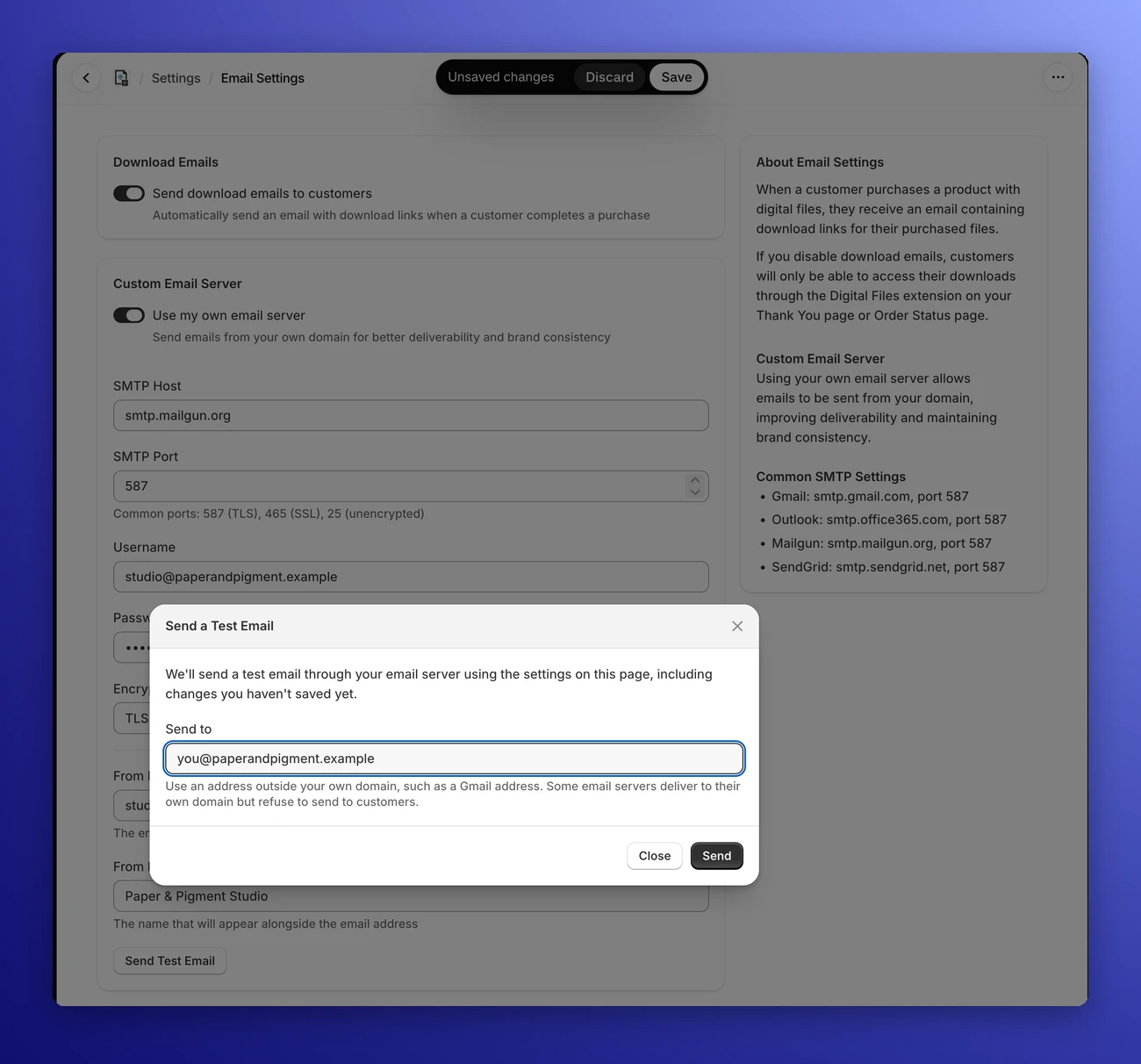
Configuring Your SMTP
Once enabled, you will need to fill in your server details:
- SMTP Host: The address of your mail server (e.g.,
smtp.gmail.com). - SMTP Port: The communication channel used. Common ports include 587 (TLS), 465 (SSL), or 25 (Unencrypted).
- Username & Password: Your login credentials for that email account. Once a password is saved, the field stays empty: leave it blank to keep the current password.
- Encryption: Select the security protocol required by your provider: TLS (Recommended), SSL or None.
Branding Your Emails
This is the main benefit of using Custom SMTP. You get to control exactly what the customer sees in their inbox:
- From Email Address: The email address the message will appear to come from (e.g.,
downloads@yourstore.com). This one is required. - From Name: The name displayed alongside the email address (e.g.,
My Awesome Store).
If you switch Use my own email server off and save, your server details are cleared and emails go out from Imprint's address again.
Sending a Test Email
Before your customers order, click Send Test Email (it becomes available once the host, port and From Email Address are filled in). In the Send a Test Email window, enter an address in the Send to field and click Send.
- Imprint sends a real email through your server, using the settings on the page, including changes you haven't saved yet.
- Use an address outside your own domain, such as a Gmail address. Some email servers deliver to their own domain but refuse to send to customers, and only a test to an outside address catches that.
- If your server refuses the email, the test fails and shows your server's reply, so you can fix the problem before a customer is affected. A Sent or Failed badge next to the button shows the last result.
If the test email doesn't arrive within a few minutes, check the spam folder and your email server's sending restrictions.
If Your Server Refuses a Download Email
If your email server rejects a download email for good (for example, it refuses the customer's address or your login), Imprint doesn't keep retrying, since some servers block senders that retry. Instead, the order is marked Failed, and its page shows Downloads could not be delivered with your server's reply, a Retry button and a link to these settings. Fix the cause, then click Retry. Temporary problems, like a server that can't be reached, are retried automatically.
📚 Common SMTP Settings
To help you get started, here are the settings for the most popular email providers:
| Provider | Host | Port |
|---|---|---|
| Gmail | smtp.gmail.com | 587 |
| Outlook / Office365 | smtp.office365.com | 587 |
| Mailgun | smtp.mailgun.org | 587 |
| SendGrid | smtp.sendgrid.net | 587 |