Watermark Settings
Configure how your PDFs are stamped, including positioning, styling, multiline templates, variables and copy codes.
The Watermark Settings page is the control center for your store's anti-piracy features.
Imprint's "Stamping Engine" takes the customer's personal information and permanently overlays it onto the PDF file at the exact moment of download. This discourages them from sharing the file publicly, as their personal data (like email or name) is attached to it.
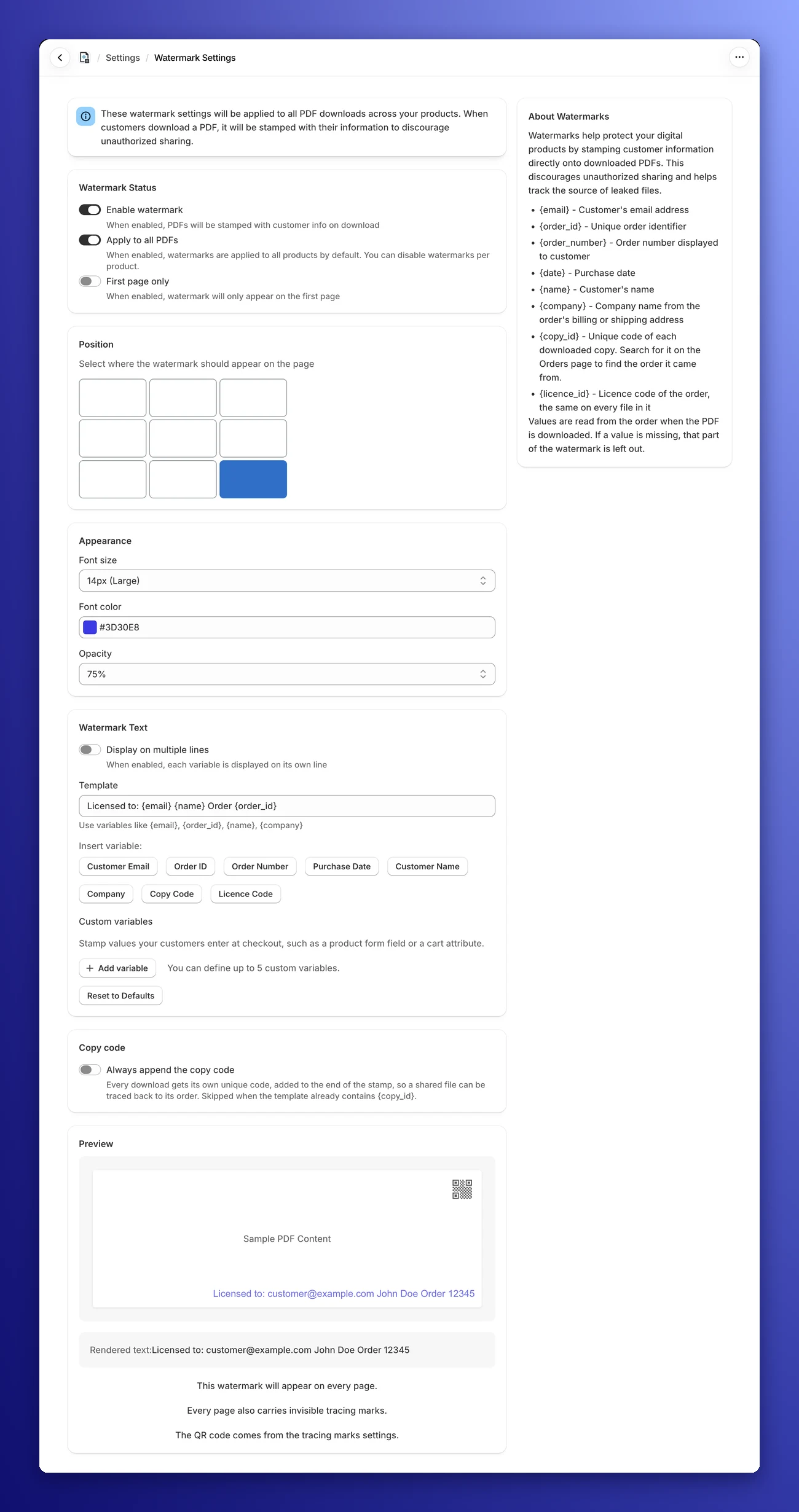
🟢 Watermark Status
These controls determine when and where watermarks are applied. These features are available on all plans.
- Enable watermark: The master switch. When enabled, PDFs will be stamped with customer info on download.
- Apply to all PDFs:
- On (default): Every PDF in your store is stamped. To leave out a specific product, switch on Disable watermark on that product's page.
- Off: No PDFs are stamped, on any product.
- First page only:
- On: The stamp appears on the first page only. Every other page stays clean.
- Off: The stamp repeats on every page of the document (Recommended for maximum security).
🎨 Advanced Customization
On the Free plan, every PDF gets the standard stamp: the customer's email, centered at the bottom of the page, in 12px gray at 50% opacity. Upgrading gives you full creative control:
📍 Position
Don't let the watermark cover your content. You can choose exactly where the stamp appears on the page.
- Grid Selector: Simply click one of the 9 boxes to place the text (e.g., Top Right, Middle Center, or Bottom Center).
🖌️ Appearance
Make the watermark subtle or bold.
- Font size: Choose from 8px (Extra Small) up to 24px. The default,
12px (Medium), is readable without being intrusive. - Font color: Use the color picker to match your brand's palette or choose a subtle grey (
#666666, the default). - Opacity: Choose 25%, 50% (the default), 75% or 100%. A lower percentage makes the text see-through so it doesn't block the underlying text of your PDF.
📏 Long Stamps Fit the Page
You don't have to worry about a stamp running off the edge. If a line is wider than the page, for example a long email address with the copy code added, Imprint prints that line in a smaller font so it fits between the page margins. In multiline mode, the whole block shrinks to fit its longest line. Stamps that already fit keep the font size you chose.
Pro Tip: Use the Preview PDF Stamp button on a product's page to see the real stamp on your own file. Learn more.
📝 Watermark Text & Variables
This is where you define what information is actually stamped. You can mix static text (like "Licensed to") with dynamic Variables.
Template System
The Template field allows you to construct your unique stamp text (up to 500 characters).
- Example:
Licensed to {name} - {email} - Order {order_number} - Result:
Licensed to John Doe - customer@example.com - Order #1001
If your template contains a variable Imprint doesn't know, you'll see Unknown variables under the field. Define it as a custom variable (see below) or remove it from the template before saving.
Display on Multiple Lines
Switch on Display on multiple lines to stack the stamp instead of printing one long line. Each variable goes on its own line, together with the text in front of it, and separators like - or | are left out. The same example template becomes:
Licensed to John Doe
customer@example.com
Order #1001
Text that ends with a colon, like Email:, gets its own line above the value, without the colon.
Available Variables
Click the buttons under Insert variable: to add these placeholders to your template:
| Variable | Button | What gets stamped |
|---|---|---|
{email} | Customer Email | The customer's email address. |
{order_id} | Order ID | Shopify's internal order ID, a long number (e.g., 5927384756123). |
{order_number} | Order Number | The order number your customer sees (e.g., #1001). |
{date} | Purchase Date | The date in year-month-day format (e.g., 2026-10-16). It is filled in when the file is downloaded, so it shows the download date. |
{name} | Customer Name | The customer's full name. |
{company} | Company | The company name from the order's billing address, or else the shipping address, or else the customer's default address. |
{copy_id} | Copy Code | A unique code for each downloaded copy (e.g., IMP-7K3QZ9M2PXP). |
{licence_id} | Licence Code | The order's licence code, the same on every file in the order (e.g., H4R8TW2N). |
{copy_id} and {licence_id} come from Copy tracking (Basic plan or higher). On the Free plan, their buttons are locked and they are left blank on stamps.
Missing values are left out. Values are read from the order when the PDF is downloaded. If a value is missing (for example, the customer didn't enter a company), that part of the watermark is dropped together with its label, so you never get a dangling "Company:" on the page:
- Template:
Company: {company} - Email: {email} - Result without a company:
Email: customer@example.com
Custom Variables
Want to stamp something your customer typed in at checkout, like the name of the person a license is for? Under Custom variables, click Add variable and fill in:
- Variable name: The name you'll use in the template, in lowercase letters, numbers and underscores (e.g.,
licenseebecomes{licensee}). - Source: Where the value comes from:
- Line item property: A field the customer fills in on the product page before adding to cart (a product form field).
- Cart attribute: A field the customer fills in on the cart page.
- Field name in Shopify: The field's name exactly as it appears on the order (e.g.,
Licensee name).
Once a variable has a name, it gets its own button under Insert variable:. You can define up to 5 custom variables. If a product appears more than once in an order with different values, all of them are stamped, separated by commas.
Because values are read when the file is downloaded, a new custom variable also works for orders placed before you added it.
The Reset to Defaults button at the bottom of this section puts every setting on the page back to its default: the {email} template with no custom variables, Bottom Center, 12px gray at 50% opacity, and the switches as a new store has them. Click Save afterwards to keep the change.
🔖 Copy Code
Every download gets its own unique copy code. Switch on Always append the copy code to add it to the end of every stamp, so a shared file can be traced back to its order.
- Single line: The code is added at the end, e.g.,
customer@example.com - IMP-7K3QZ9M2PXP. - Multiple lines: The code goes on its own last line.
- Already in your template? If your template places
{copy_id}itself, nothing is added, so the code never appears twice.
This switch is on by default for new stores. If you already used Imprint before copy codes were introduced, it starts off until you switch it on.
To find the order a code belongs to, see Copy tracking.
👀 Live Preview
As you adjust the settings above, the Preview section updates in real-time.
- It shows a sample page ("Sample PDF Content") with your stamp applied, using sample values such as
customer@example.com,John Doeand#1001. Custom variables show as "Sample" followed by the field name. - Rendered text: shows the exact text that will be stamped.
- A note tells you whether the watermark will appear on every page or only on the first page.
- If you use tracing marks with a QR code, the preview also shows the QR code in its corner, so you can keep the stamp clear of it.
If watermarks are switched off, the preview shows a warning instead of the stamp.
🕵️ Invisible Tracing Marks
The visible stamp isn't the only way to mark a copy. In Settings → Tracing Marks, you can hide each download's copy code inside the PDF and add an optional QR code.
Tracing marks are separate from the watermark: they are added even when the watermark is off, when Apply to all PDFs is off, and on products whose watermark is disabled.
Tracing marks
Learn how to hide copy codes in your PDFs to trace leaked files.