Product Dashboard
Learn how to manage your digital catalog, including mass importing products and tracking your storage usage.
Product Dashboard
The Products page is your command center. This is where you can see every digital product you are selling, monitor your storage limits, and make quick changes to your catalog.
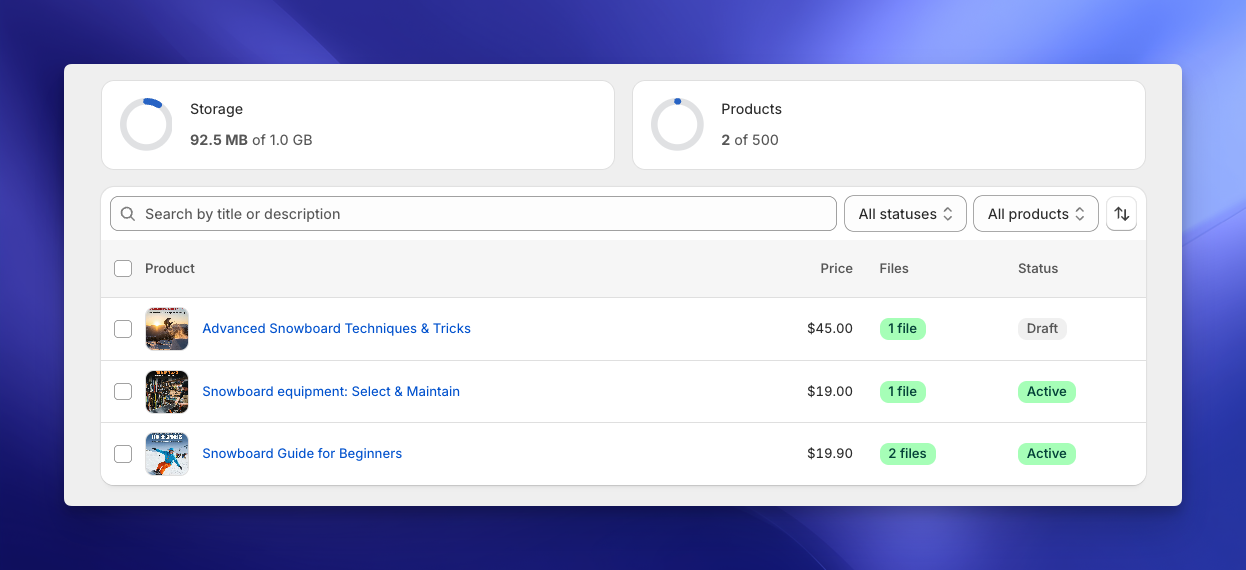
At a glance, the dashboard gives you a health check of your store:
- Storage Widget: Shows how much space your files are taking up (e.g., 80.4 MB of 5 GB).
- Product Count: Shows how many digital products you have created against your plan's limit.
➕ Adding Products
You have two ways to bring products from Shopify into Imprint.
Option 1: Single Add
If you want to set up one product perfectly with descriptions and specific files right away:
- Click the black Add Product button in the top right corner.
- Select your product and immediately start uploading files.
Option 2: Mass Add
Got a huge catalog? You don't need to add them one by one.
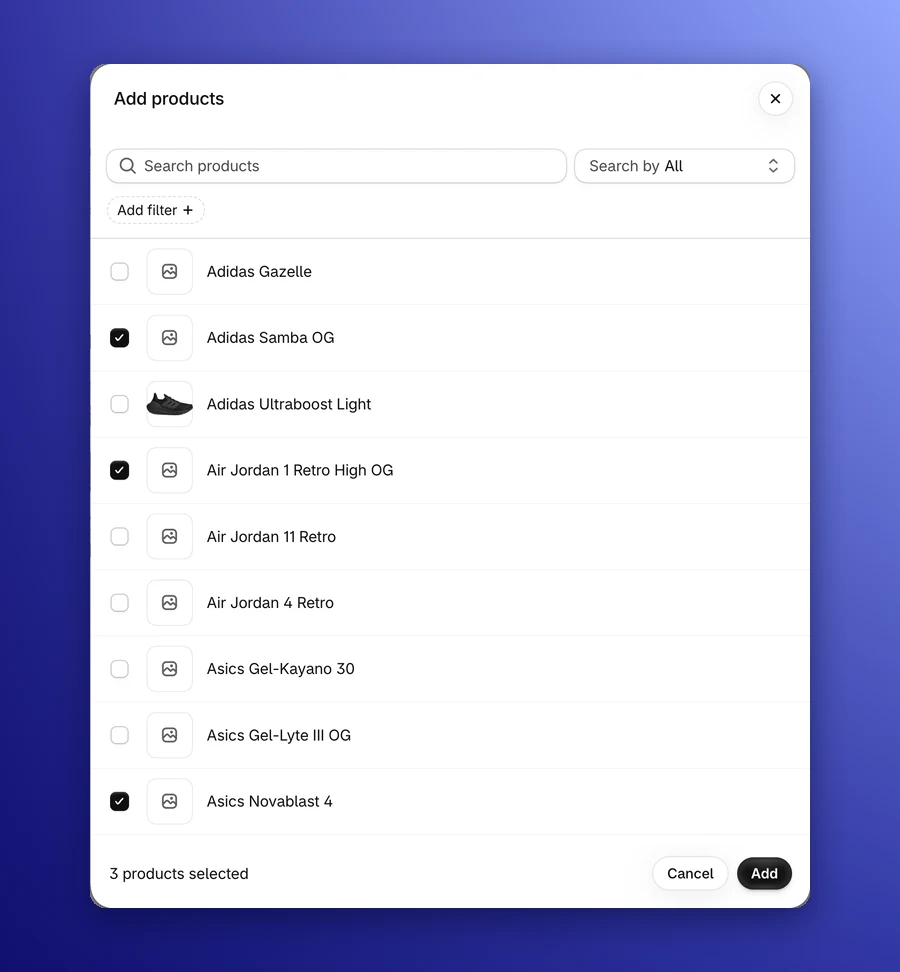
- Click the Mass add products button.
- A popup will appear showing all your Shopify products.
- Search & Filter: You can search by name or use the "Add filter" button to find specific collections or tags.
- Select Multiple: Tick the checkboxes next to every product you want to import (e.g., "The Collection Snowboard: Hydrogen", "Liquid", etc.).
- Click Add. Imprint adds them in the background and shows its progress at the top of the page (e.g., Adding products... 12/40).
The new products start as Draft, since they don't have any files yet. Open each one to upload its files, then set it to active. Products that are already in Imprint are skipped, and you can only add as many as your plan's product limit allows.
🧹 Bulk Actions: Publish, Unpublish & Delete
Need to clean up your store or stop selling a batch of files? You can perform actions on multiple products at once directly from the list.
- Select Products: On the main list, click the checkbox next to the products you want to modify.
- Select Action: Once items are selected, a bulk action menu will appear.
- Publish: Switches the status from "Draft" to "Active", so new orders for these products get their download links.
- Unpublish: Switches the status from "Active" to "Draft," stopping new download emails without deleting your files. Customers who already bought the product keep their links.
- Delete: Permanently removes the digital files and settings for these products.
Warning: Deleting a product from Imprint permanently deletes all associated files. This action cannot be undone and files cannot be restored.
🔍 Finding What You Need
As your catalog grows to hundreds of products, scrolling becomes tedious. Use the Search & Filter bar at the top of the list:
- Search: Type any part of the title or description to filter the list instantly.
- Filter by Status: Use the dropdown to see only Active or Draft products.
- Filter by Files: Choose With files or No files to quickly find products that are still missing their downloads.
- Sort: Order the list by Date created, Title or Status, newest or oldest first.