Managing Products
A complete guide to configuring your digital products, uploading files, and controlling watermark settings.
📦 Product Page
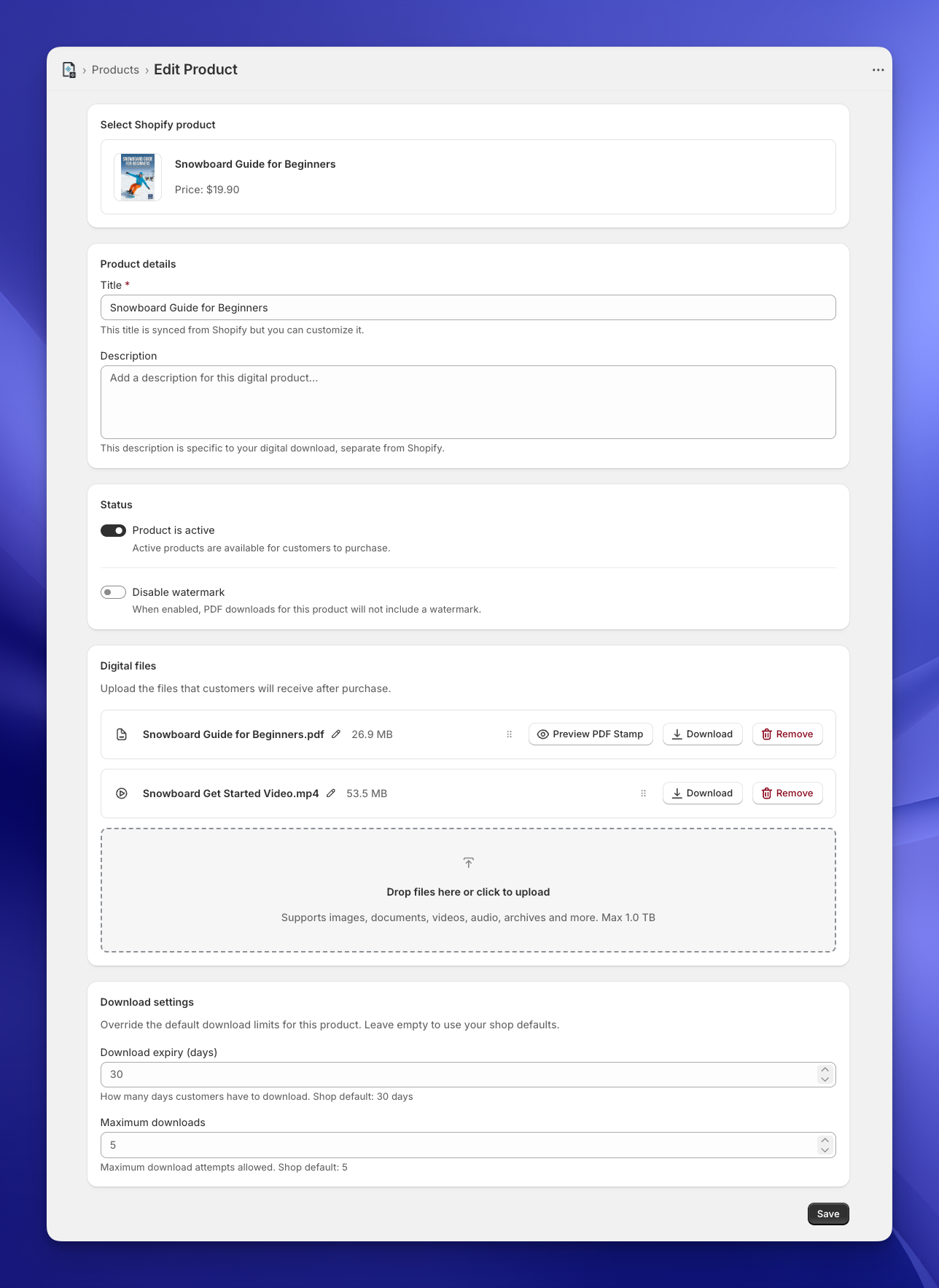
Once you've selected a product from your Shopify catalog, you'll land on the Product Details page. Think of this as the "Mission Control" for that specific item.
Here, you can control exactly what your customer receives, how the product is described in emails, and most importantly, how it is protected.
🔗 The Shopify Connection
At the very top, you'll see the Shopify product you picked under Select Shopify product. While you're still creating the product, you can click Change to pick a different one. Imprint keeps a link to the product in your Shopify store and reads its price, image and variants from there, so changes you make in Shopify show up here.
- Title: By default, we sync the title from Shopify. However, you can customize this field if you want the digital download to have a slightly different name in emails and on the checkout downloads (e.g., adding " - Digital Edition" to the end).
- Description: A note about this digital download, kept separate from your Shopify product description. It's for your own reference: you can search for it on the Products page, but customers don't see it.
⚙️ Status & Security
This section controls the availability and protection of your files.
Product is Active
This is your main "On/Off" switch.
- On (Green): The product is live. If a customer buys it, they get the download email.
- Off (Grey): The product is in draft mode. Emails won't be sent. Useful when you are setting things up or updating files.
Disable Watermark
By default, Imprint's powerful Stamping Engine stamps every PDF your customers download. We highly recommend leaving it that way to prevent piracy.
Turn on Disable watermark if you'd rather deliver this product's PDFs without the visible stamp.
Be advised, this is a per-product setting. To turn PDF stamping off for your whole store, use the Watermark Settings.
Tracing marks still apply. If you use tracing marks (Premium), the invisible tracing marks (and the QR code, if you turned it on) are still added to this product's PDFs when its watermark is disabled. Only the visible stamp is left out.
📂 Digital Files
This is where the magic happens. You can upload the actual assets your customers are buying.
Drag, Drop, Done.
Simply drag your files into the upload box at the bottom, or click to browse. We support a huge range of file types including PDFs and other documents, eBooks, Images, Design files, Videos, Audio, Archives (ZIP, RAR, 7z), Fonts and 3D files.
How big each file can be depends on your plan: up to 100 MB on Free, 1 GB on Basic, and no limit on Premium. See Pricing & Plans.
Changing the order
You can drag and drop the files by the drag icon to change the order in which they appear when the download links are presented to the user.
Renaming files
You can click on the file's name to change the name of each file. This is used as the filename the user sees after downloading, depending on your download settings.
Managing Uploads
Once uploaded, your files appear in the list.
- 📄 PDF Files: Once the product is saved, you will see a special Preview PDF Stamp button. Click this to see a real-time example of how the watermark will look on your specific document before you sell it. The preview uses placeholder customer details. Switch between Stamped Preview and Original PDF to compare, and download either one. If you use tracing marks, the preview includes them too, with a sample copy code.
- 📹 Other Files: For videos or other media, you can verify the file is correct by clicking Download.
Pro Tip: To attach multiple files into one product like this example, the Basic plan or higher is required.
🔀 Handling Product Variants
Does your product have options in Shopify (like Size, Color, or Edition)? Imprint automatically detects these and gives you special controls to manage them.
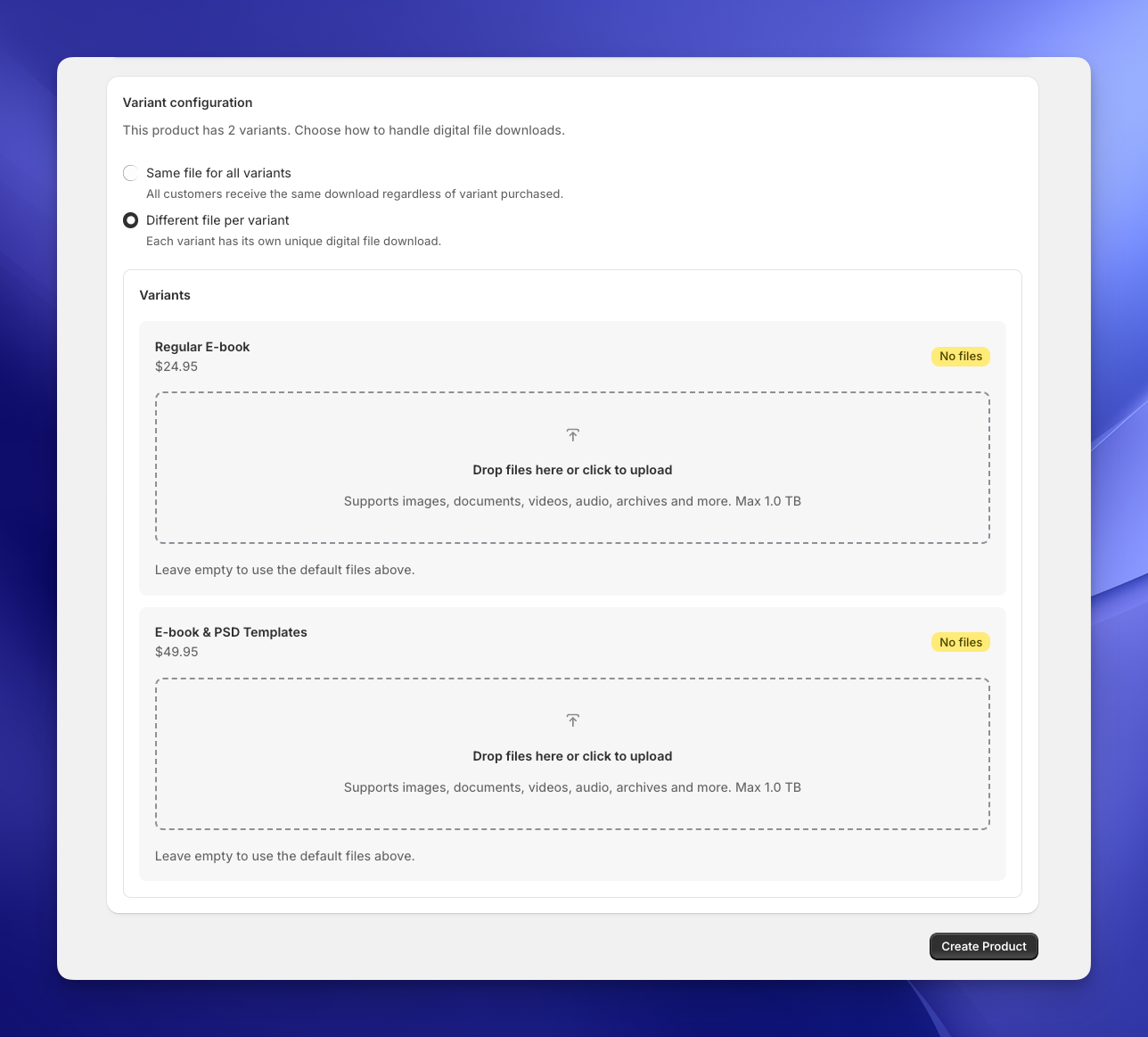
If your product has variants, you will see a Variant configuration section appear. Under File mode, you have two powerful choices:
Option 1: Same file for all variants
- Best for: Products where the digital bonus is identical regardless of the choice (e.g., selling a T-shirt in S/M/L that comes with the same generic PDF guide).
- How it works: Select Same file for all variants. All customers will receive the main file you uploaded at the top of the page.
Option 2: Different file per variant
- Best for: Tiered digital products or "Deluxe" editions.
- How it works: Select Different file per variant. This unlocks individual upload areas for every single option. A variant you leave empty uses the default files uploaded above.
Example: In the screenshot above, you can see a tiered setup:
- Regular E-book ($24.95): You would upload just the PDF here.
- E-book & PSD Templates ($49.95): You would upload the PDF and the source files here.
This ensures that the customer who pays more gets the extra content automatically!
Lots of variants?
Products with many variants show them a page at a time. Use Search variants to find one by its name or SKU, and the File status filter to show only the variants With custom files or those Using default files.
🎛️ Overriding Download Limits (Per Product)
Sometimes, one size doesn't fit all. You might have a "Limited Time" product that needs strict limits, or a "Lifetime Access" bundle that should never expire.
At the bottom of the product page, you will find the Download settings section. These controls allow you to override your global store defaults just for this specific item.
- Download expiry (days): Enter a number here to set a custom expiration time. For example, you could set this to
365for a year-long course, or2for a flash sale. - Maximum downloads: Enter a number to restrict or expand the number of download attempts allowed.
ℹ️ Note: If you leave these fields empty, Imprint will automatically use the Shop Defaults you configured in your Download Settings (out of the box: 7 days / 3 downloads). Click Reset to defaults to clear both fields.
Don't forget to Save!
When you are happy with your setup, hit the black Save button in the bottom right corner (or Create Product for a new one) to push your changes live. You can also use the Save bar Shopify shows at the top of the page as soon as you change something.