Download Settings
Configure store-wide defaults for link expiration, download limits, and file naming conventions.
The Download Settings page allows you to define the default download limits for your digital products. Think of these as your store's baseline security rules.
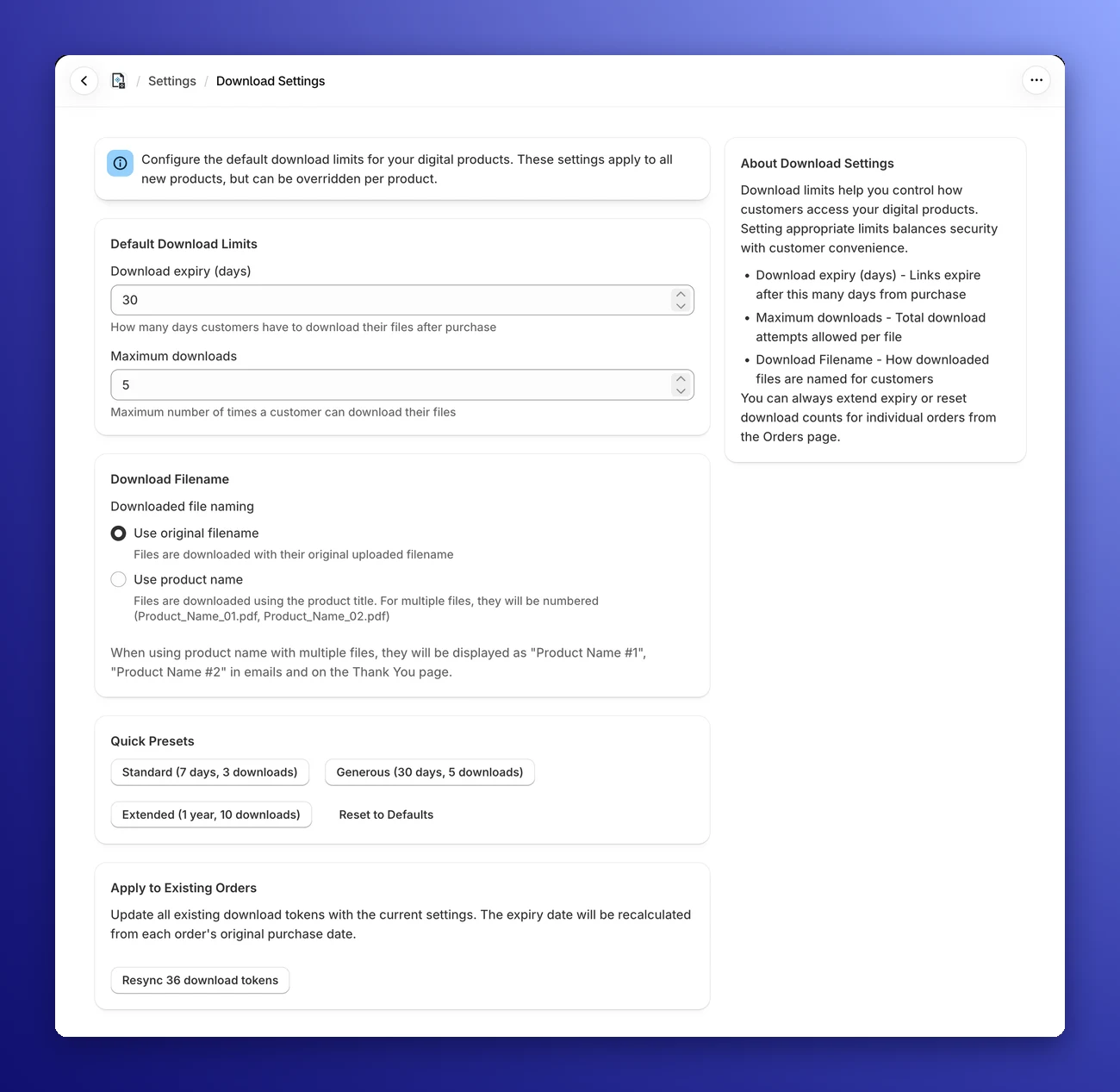
Note: These defaults apply to every product that doesn't have its own download limits (you can set those on the product page). A change applies to download links created after you save. Links your customers already have keep their old limits, unless you use Apply to Existing Orders below.
⏳ Default Download Limits
Balancing security with customer convenience is key. These settings control how long a customer has access to their files.
- Download expiry (days): Set the number of days a download link remains active after purchase, from 1 to 365. After this period, the link will expire. New stores start at 7 days.
- Maximum downloads: Set how many times a customer can download each file, from 1 to 100. This prevents a single purchase from being shared with a large group. New stores start at 3 downloads.
Pro Tip: You can always extend the expiry date or reset the download count for a specific customer from that order's page on the Orders page if they run into issues.
📁 Download Filename
This section controls how the files are named when your customers save them to their computer.
- Use original filename: The file will keep the exact name it had when you uploaded it (e.g.,
my-snowboard-guide-v3.pdf). - Use product name: The file will be renamed to match the product title in your store. This is often cleaner and more professional for the customer.
- For multiple files: If a product has more than one file, they will be sequentially numbered (e.g.,
Snowboard_Guide_01.pdf,Snowboard_Guide_02.pdf). In emails and on the Thank You page, they are listed as "Snowboard Guide #1", "Snowboard Guide #2". - Special characters: Spaces and special characters become underscores, and so do accented and non-Latin letters. If none of the title is left, the original filename is used. If your product titles aren't in plain English letters, Use original filename may give nicer names.
- For multiple files: If a product has more than one file, they will be sequentially numbered (e.g.,
⚡ Quick Presets
Not sure what to choose? We have defined three common configurations you can apply with a single click:
- Standard: 7 days expiry, 3 downloads.
- Generous: 30 days expiry, 5 downloads (This is a good starting point).
- Extended: 1 year expiry, 10 downloads.
Next to the presets, Reset to Defaults fills in 7 days, 5 downloads and Use original filename. Presets and the reset only fill in the form, so click Save afterwards to keep the change.
🔄 Apply to Existing Orders
By default, changing the settings above only affects future orders. However, sometimes you might want to change the rules for everyone, for example, if you decide to increase the download limit from 3 to 5 for all past customers.
You can do this using the Apply to Existing Orders section at the bottom of the page. The button shows how many download links will be updated (e.g., Resync 120 download tokens), and opens a confirmation listing the new expiry and download limit. Click Resync All to start.
- How it works: This updates every download link your customers already have to your saved settings, so save any changes first. The expiry date is recalculated based on the order's original purchase date.
- What stays the same: Download counts are kept, so customers don't get extra downloads back. Products with their own download limits use those instead of the store defaults. Links that were revoked because you refunded the item are skipped.
- In the background: The update runs in the background and a message tells you when it's done.
- Example: If you set expiry to 30 days and a customer bought the item 40 days ago, resyncing will cause their link to expire immediately.